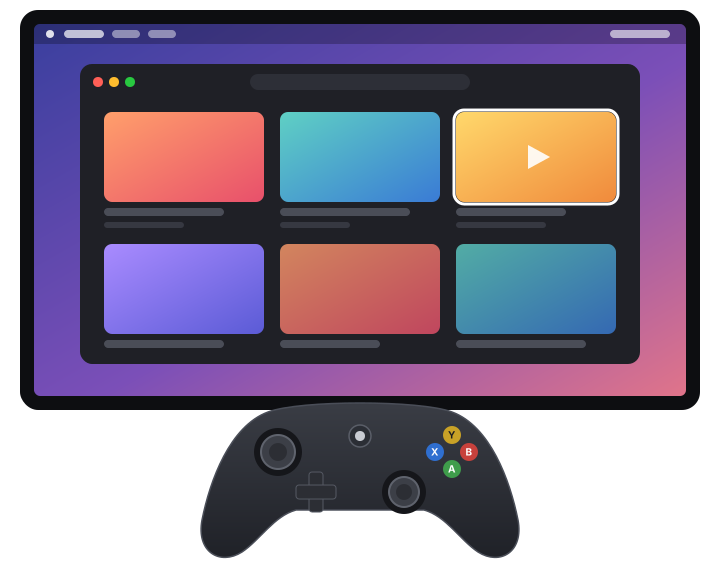
Everything from the couch
Put the keyboard away. Stickmouse turns every stick and button into something useful.
Smooth pointer
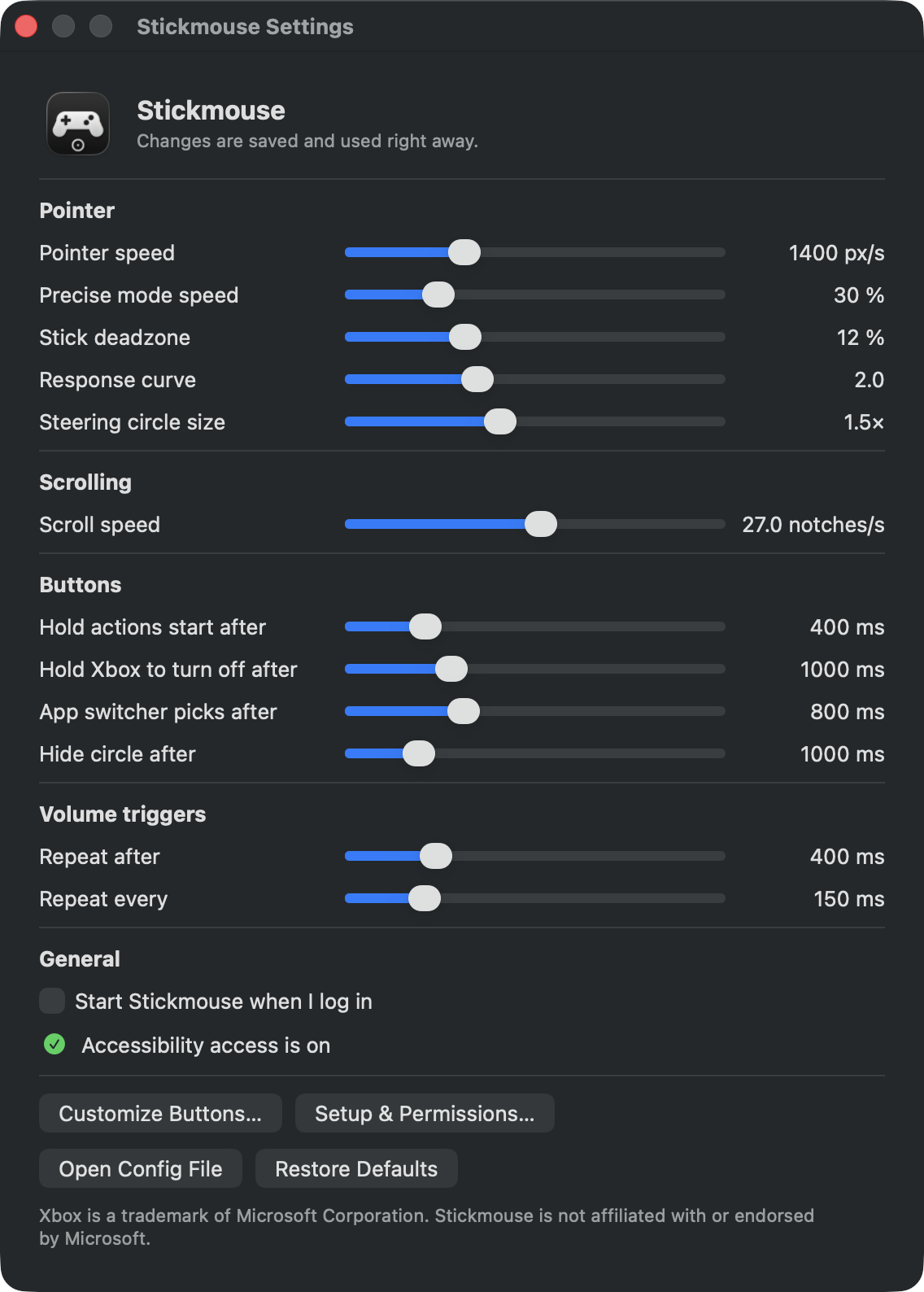
The left stick moves the pointer on a gentle curve, so small movements stay precise. Click the stick for an even slower mode.
Scrolling
The right stick scrolls pages, lists and timelines smoothly, up, down and sideways.
Media keys
Play, pause, skip tracks and change the volume with the bumpers and triggers.
Switch apps
One button cycles through open apps like ⌘ Tab. Another opens Mission Control, a third Spotlight.
Every button is yours
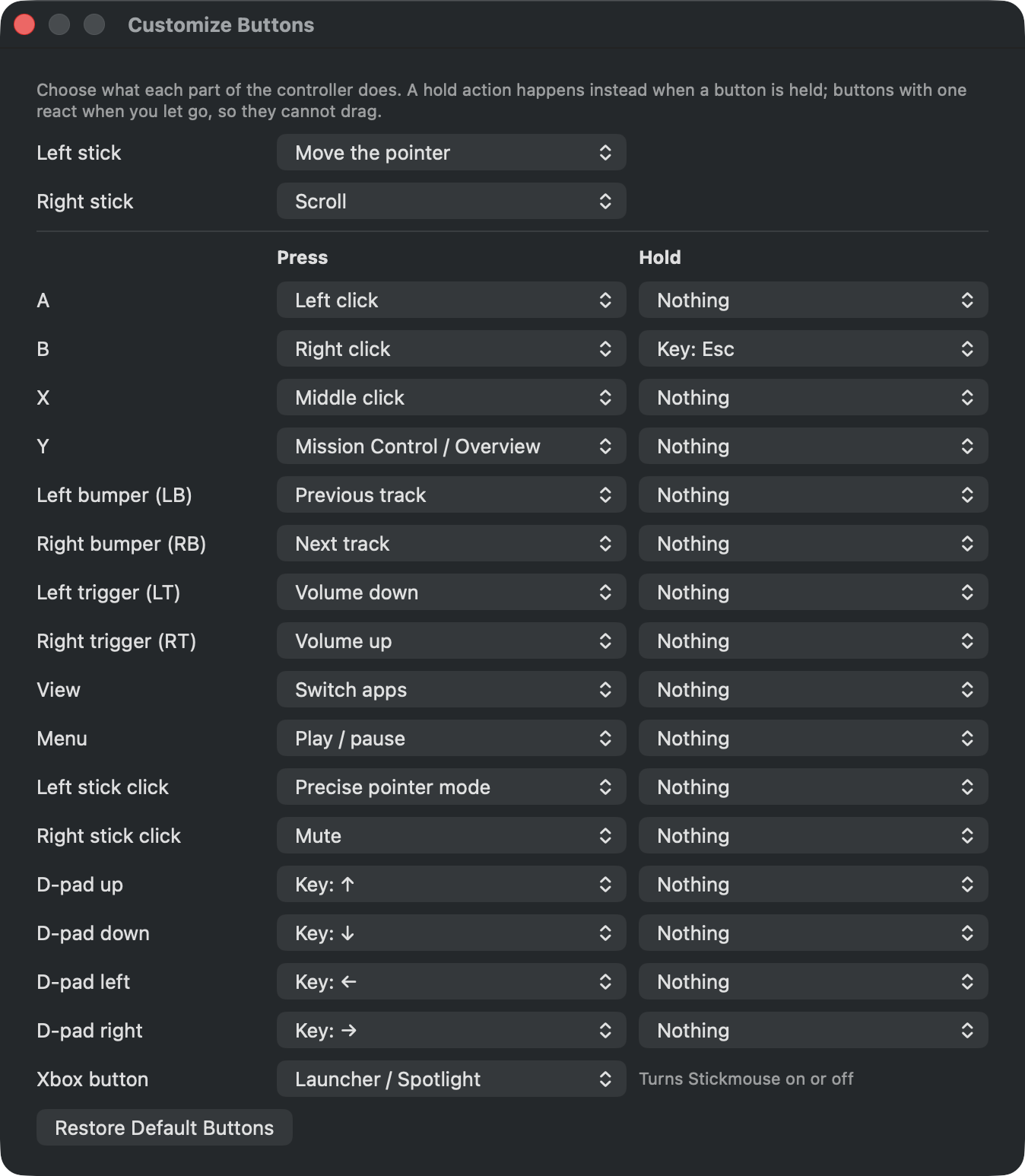
Give any button, trigger or D-pad direction a new job, with a second one for holding it: clicks, media keys or any keyboard shortcut.
Out of your way
A small circle shows while you steer and hides once you stop. Touch the real mouse and it steps aside.
Tuned the way you like it
Every speed, deadzone and timing has a slider. Changes apply instantly, no restart.
Ready out of the box
The default layout works right away. Change any of it later.
One price, yours to keep
Try everything for a week. Buy only if you like it.
one-time payment
- No subscription, no account
- Free 7-day trial with every feature
- One license for up to 3 of your Macs
- Taxes handled at checkout
- 14-day refund, no questions asked
Your license key arrives by email. Paste it in Stickmouse from the menu bar icon › Buy Stickmouse.
Questions
macOS says Stickmouse cannot be opened
Stickmouse is not distributed through the App Store. Open System Settings › Privacy & Security, scroll down and click "Open Anyway" next to Stickmouse. You only need to do this once.
Why does Stickmouse need Accessibility access?
macOS only lets apps with Accessibility access move the pointer, click and press keys. Stickmouse uses it for nothing else. It only goes online to check your license key and to look for updates; see the privacy policy.
Which controllers work?
Any controller macOS supports: Xbox Wireless, Xbox Elite, PlayStation DualShock 4 and DualSense, and most MFi controllers, over Bluetooth or USB.
Will games still see my controller?
Yes. Hold the home button for a second to turn Stickmouse off while you play, and again to turn it back on.
Can I change what the buttons do?
Yes. Give any button, trigger or D-pad direction one action for a press and another for holding it: a click, a media key, Mission Control or any keyboard shortcut. You can also swap the sticks. Open Customize Buttons from the menu bar icon.
Can I use my license on more than one Mac?
Yes, one license works on up to 3 of your Macs.
How do I move my license to a new Mac?
On the old Mac, open the Stickmouse menu › License… and click Deactivate on This Mac. Then enter the same key on the new Mac. If the old Mac is gone, open an issue and I will free up the slot.
What if Stickmouse is not for me?
You get a full refund within 14 days of purchase, no questions asked. Reply to the receipt email from Polar, or open an issue on the support page, and include your order email.